
Moving A User To A Different User Group
There are two options when moving a user to another User Group
Option 1:
Login to SPARC Media Hub using your favourite browser
Select AdminCP from the sidebar (If you do not see AdminCP, you do not have sufficient permissions)
Select User Management from the sub menu. (If you do not see User Management, you do not have sufficient permissions)
Select View All Users
Locate the user you’d like to change
Use the green User Group dropdown to change the User Group.
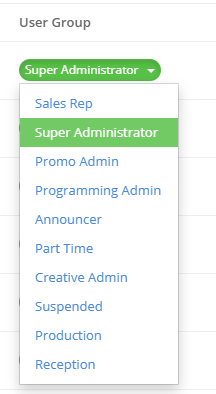
Select the new User Group and you’re done!
Option 2:
Login to SPARC Media Hub using your favourite browser
Select AdminCP from the sidebar (If you do not see AdminCP, you do not have sufficient permissions)
Select User Management from the sub menu. (If you do not see User Management, you do not have sufficient permissions)
Select View All Users
Locate the user you’d like to change
Click the blue Edit User button on the right
Locate the User Group drop down. This is located directly below the station selection buttons
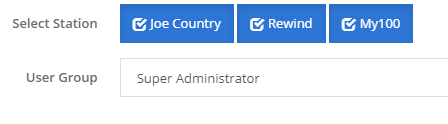
Use the dropdown to select the User Group you’d like to move this user to.
Once select scroll to the bottom of the page and click the blue Save User Details button.